
Docs
The Translations screen
Every string the site has translated, in one searchable table. Edit, lock, revert, regenerate, or delete rows, and see what one page is missing.
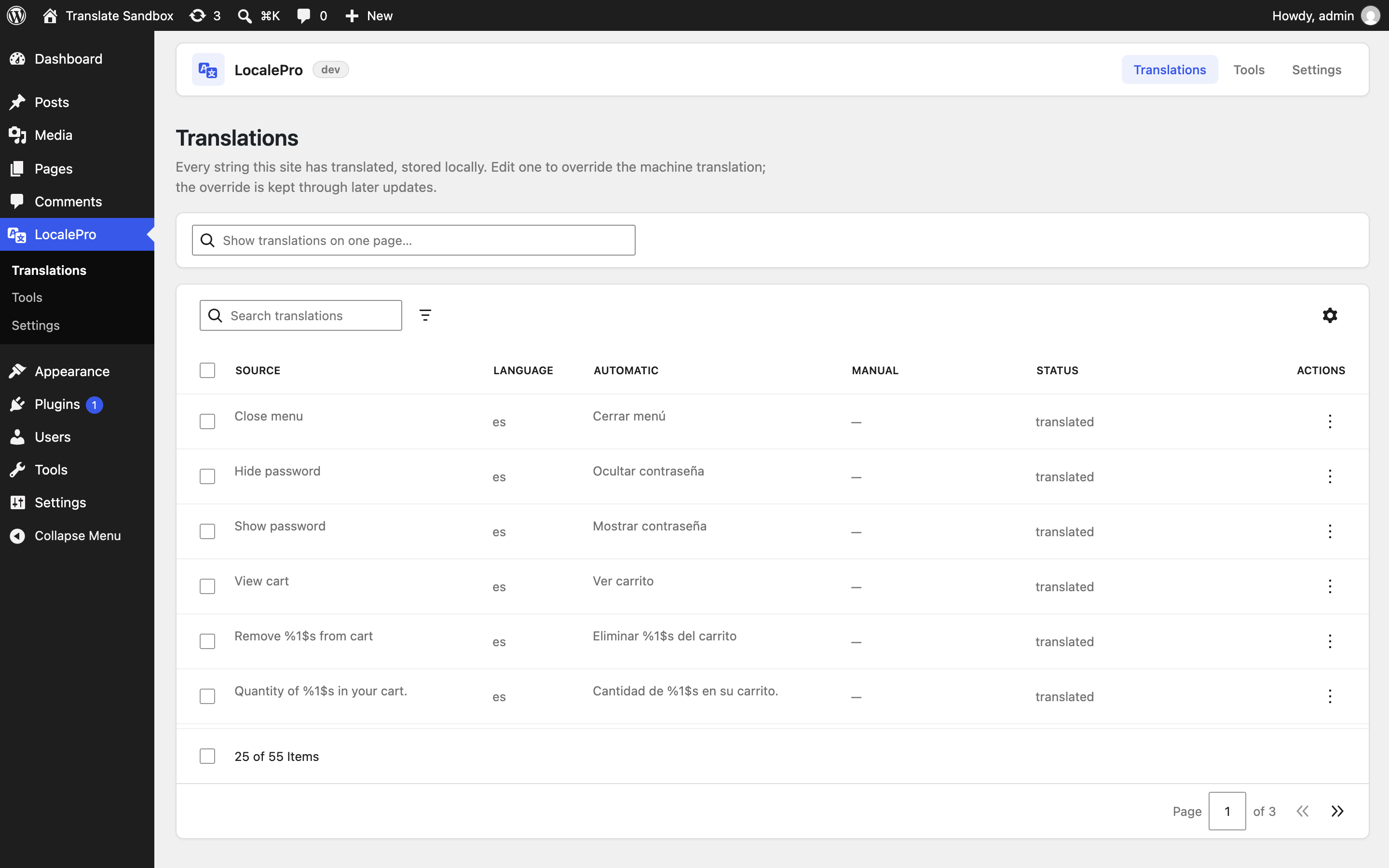
Search, filter, and edit every saved translation.
LocalePro → Translations lists every string this site has translated, stored locally. Edit one to override the machine translation; the override is kept through later updates. The screen is a WordPress DataViews table backed by the plugin’s REST API, so everything here can also be done by a script; see the REST API.
The table
By default the table shows 25 rows, newest change first, with these columns:
| Column | What it holds |
|---|---|
| Source | The sentence as written on your site. Searchable. |
| Language | The target language code. |
| Automatic | What the translation service returned. |
| Manual | A translation a person wrote, if any. |
| Status | One of pending, translated, manual, stale, failed. |
Three more columns can be turned on from the view menu: Override (whether the row has a manual translation), Modified (the last change, in the site’s timezone), and Locked.
Search translations matches the source text, the automatic translation, and the manual translation.
Filters: Language, Status, and Override (Has manual override or Automatic only). Sorting is available on Modified, Source, Language, and Status.
What the statuses mean
pending: the row exists but has no usable translation yet. It is translated on the next page render that needs it.translated: the automatic translation is being served.manual: a person’s translation is being served, and the row is locked.stale: a locked or manual row whose source sentence no longer appears on the page it came from. The sentence changed, and the translation you wrote may need a look. Detected on save for posts and pages.failed: the provider failed this sentence. The source text is served, and the row is sent to a provider again on the next render.
Editing a row
Edit manual translation opens a modal. The box starts with the automatic translation, so you edit a sentence whose markers already line up rather than starting from nothing. Saving locks the row: automatic translation never overwrites it, and Regenerate automatic and Improve with AI refuse it.
A sentence that contains a link or formatting carries numbered tags (data-lt) in its source. Every tag must be present in your translation. The modal warns while you type if one is missing, and the server rejects the save if one is dropped, because the page would otherwise lose the link. A saved override that drops a tag shows a not applied badge in the Manual column, and the page shows the automatic translation until you fix it.
Row and bulk actions
Select one row for its actions, or tick several for the ones marked bulk.
| Action | Bulk | Applies to | What it does |
|---|---|---|---|
| Edit manual translation | no | any row | Opens the editor above. |
| Revert to automatic | yes | rows with a manual translation, or locked | Clears the manual translation and unlocks. The automatic translation is served again. |
| Unlock | yes | locked rows | Unlocks without removing the manual value. |
| Regenerate automatic | yes | unlocked rows with no manual translation | Clears the automatic translation. The sentence is translated again on the next page render, which spends credit. |
| Delete | yes | any row, including locked and manual | Removes the stored translation after a confirmation. The source text is not affected; the sentence is translated again the next time a visitor loads a page containing it, which spends credit. The confirmation says how many of the selected rows are locked or manual. |
| Improve with AI | yes | unlocked automatic rows, when an AI provider is connected | Rewrites the automatic translation through the AI service you connected. Locked and manual rows are left unchanged. |
Delete is the one action that ignores the lock. It is how you remove a translation that was stored before a rule or a protected term existed; see content and exclusions.
Translations on one page
The card above the table limits the screen to one page in one language. Pick a page in the picker, then a language. There are two other ways in: a Translations row action on the Posts, Pages, and Products lists, and a link per language in the editor’s language panel. The address bar carries the choice (?object=42&lang=es), so a link or a reload lands on the same page.
Choosing a page reads it: LocalePro fetches the translated page from your own server and records every string the page resolves. While that runs the card says Reading “About us” in Spanish…. Then it shows:
- The page title, N strings · Spanish, and when it was last read (Read 4 minutes ago), with a Refresh button.
- A legend: N machine translated, N edited by you (when any), N not translated.
- A switch between Translated and Not translated, each with its count.
- A Translate N missing strings button when something is missing.
With a page chosen, the Language column gives way to a Where column, which names the places on the page a string appears: Page (text a visitor sees), Search & sharing (text search engines and link previews read, such as structured data), or Interactive text (text a script puts on screen later). One string can appear in more than one place. The Not translated list shows Source and Where only, and its search box is Search this page.
Translate N missing strings opens a confirmation that states how many strings and characters will be sent to your provider, and how many characters are left under this month’s limit if one is set. It runs in the background; refresh the list in a minute to see the results.
When the list is out of date
The counts are live, so editing a translation never makes the list stale. The list of strings is a snapshot, and a banner says when it may have moved:
- This page, or something shown on it, has changed since this list was made. The post was saved, or a menu, widget, theme, plugin, or LocalePro setting changed.
- This list is more than a week old.
Refresh the list reads the page again. A very long page is listed up to a limit, and the card says so.
Limits
- The page is read as an anonymous visitor. Logged-in or member-only content is not listed.
- Text the page loads later over AJAX or REST is not listed.
- A page set to Your own version or Off in that language, or covered by an exclusion rule, cannot be read; the card says why.
- A host that blocks loopback requests, or a page cache that serves the read from a stored copy, cannot build the list. The read carries a
localepro_inventoryquery argument that caches must bypass.
Related
- Import and export, to hand rows to a translator or move them between sites.
- The Tools screen, for site-wide pretranslation.
- Page-by-page control, for the per-language modes that decide what a page’s list can contain.