
Docs
Images in each language
Show a different image, PDF, or video in each language. For a banner, a document, or a film that already has words in it.
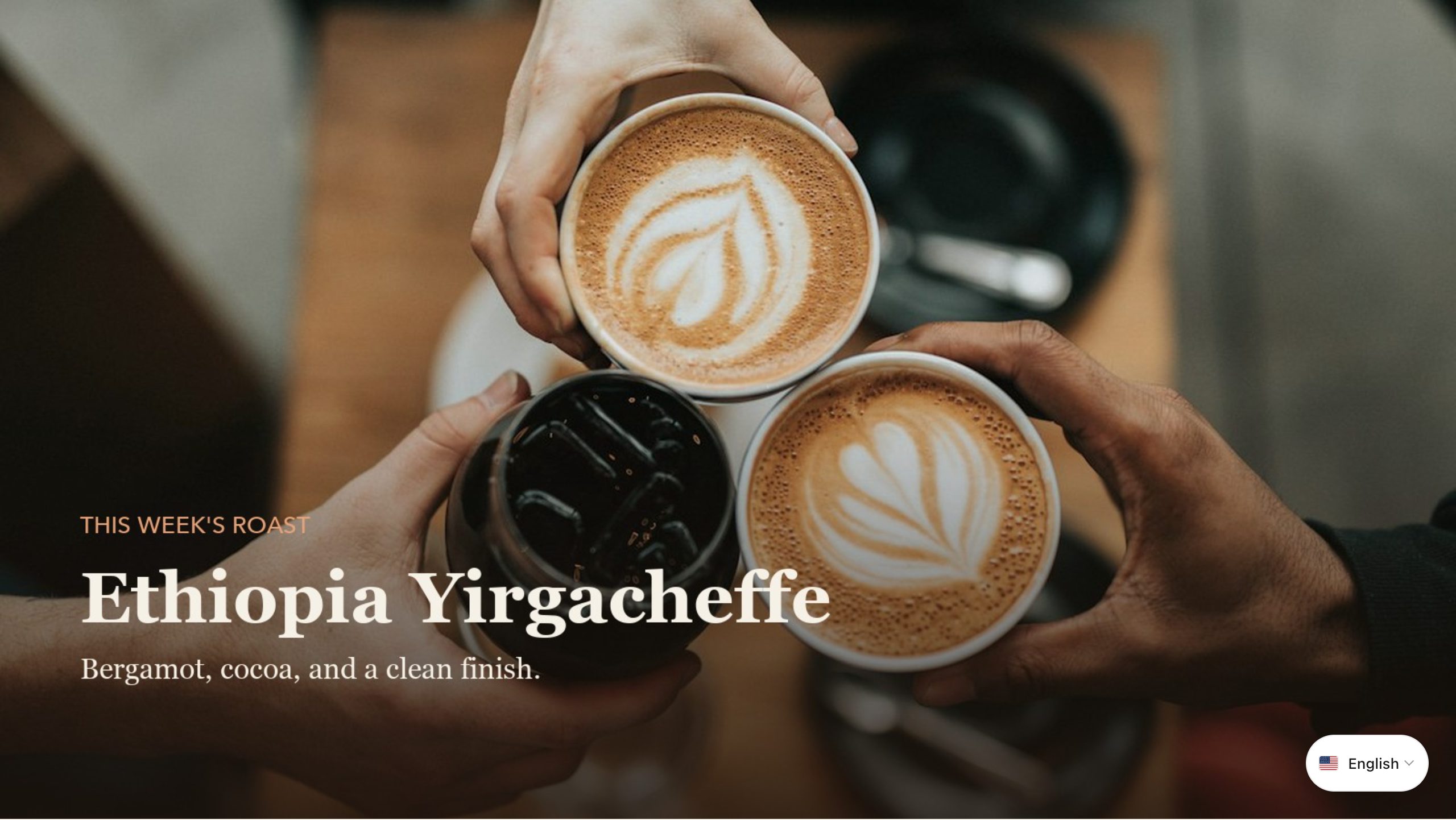
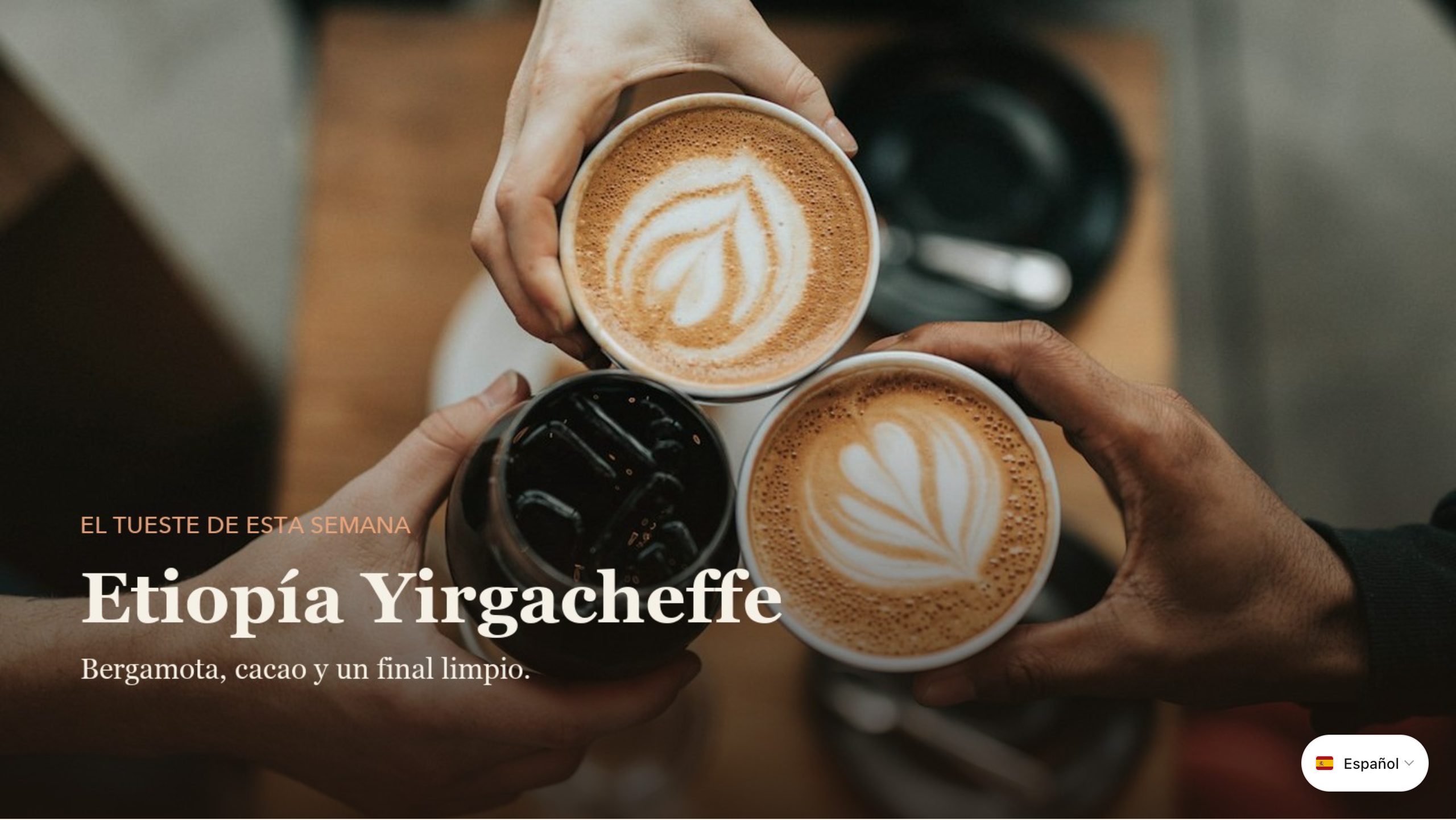
A banner that says “This week’s roast” stays in English no matter which language the page is in. Those words are part of the picture. LocalePro translates the text around an image, including its alt text. The picture itself is one you replace.
Upload the translated file to the Media Library, then say which original it stands in for. From then on, a page in that language shows the new file wherever the original appears: a post, the homepage, a product, a page builder.
Choose it on the file
Open the original in the Media Library and choose Edit more details. The Language versions box has a row for each language the site offers.

Choose opens the Media Library. Replace swaps one translated file for another. Remove goes back to showing the original in that language. Each change is saved as you make it.
The same rows are on an Image, Cover, or Media & Text block, under Language versions in the block settings.
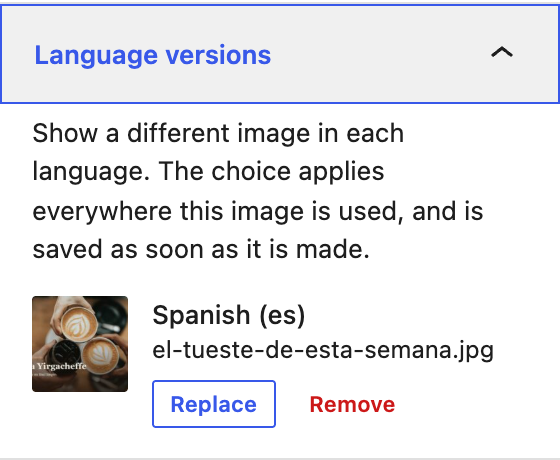
A choice made on the block is a choice about the file. It applies in the header, in a product gallery, and in whichever page builder inserted the image, and it is saved straight away, without saving the post.
In the media picker those builders open, the attachment details name the file chosen for each language and link back to this box.
The box warns you when the new file is a different shape from the original. That is allowed. A translated line is often longer. The page keeps the width you laid out and reserves height for the new shape.
An image can only be replaced by an image, and a document by a document.
Files that aren’t in your library
Some of what a page shows was never uploaded to it. A YouTube video with someone talking in it. A brochure on another site. A badge your theme ships. There’s no file to open, so you name it by its address instead.
Go to Settings → LocalePro → Content and find Files outside the Media Library. Choose Add file, then fill in three things:
- Original address. The address the page uses now.
- Language. One language, or all of them.
- Show instead. The address to use in that language. Choose from library fills it in with a file you’ve uploaded.
Save, and pages in that language show the new file.
You don’t have to match the address letter for letter. http and https are the same file. A path on your own site works with or without the site’s address in front. If the page adds something after the path, such as ?v=3, the rule still matches and the ?v=3 carries over.
YouTube and Vimeo
One video shows up under several addresses: the page you watch it on, the short link, the player inside an embed, the still image shown before it plays. Paste any one of them. LocalePro recognizes the video in all of them.
The player keeps its settings. If your embed starts at twelve seconds with related videos off, the Spanish video does too.
Files on a CDN or in a bucket
If a plugin moves your uploads to a CDN or a storage bucket, you don’t need rules for them. They’re still in your Media Library, so choose their versions there. That works when the plugin keeps the usual uploads path, and when it gives each file a path of its own.
If you add or reconfigure a plugin like that later, save one language version again so LocalePro notes where the files are served from now.
What changes on the page
Every size WordPress made of the file, including the smaller one a phone asks for. A link that opens the file, such as a download of a PDF. The image a shared link previews, in the og:image and twitter:image tags. Video and audio players, and embeds in an iframe.
For a file from your library, only the path changes. An image served from a CDN stays on that CDN, and anything after the path, such as ?ver=, stays too.
What stays as it is
A background image set in your stylesheet. The translated page carries its language on the html tag, so the stylesheet can answer:
html[lang="es"] .hero {
  background-image: url(/wp-content/uploads/hero-es.jpg);
}
html[lang^="es"] covers es-MX as well.
A background painted into a style attribute stays too. A Cover block in its usual mode is an image and is swapped. One set to a fixed or repeated background is not.
So do images named inside schema or other data the page fetches after it loads, and images inside an email. The same goes for an address that only appears inside a script.
A video that isn’t in the page until someone clicks is a special case. Some lazy loaders show a still and keep only the video’s ID until then. LocalePro swaps a YouTube still, but it can’t swap a player that doesn’t exist yet.
Private files stay as they are too. A storage plugin gives each visitor a signed address that expires, and changing the file in it would break the signature.
LocalePro does not redraw the picture. You supply the translated file.
Afterwards
Regenerating thumbnails, cropping the file, or deleting it brings the record up to date on its own. Delete the translated file and the original shows again in that language. Those files are your uploads: removing LocalePro, even with its data deleted, leaves them in the library.
If you build themes or plugins, the two filters are localepro_media_map and localepro_media_attributes, and the route the screens use is /localepro/v1/media/{id}.