
Docs
The Tools screen
Pretranslate published posts and pages, and export or import the translation memory, from LocalePro → Tools.
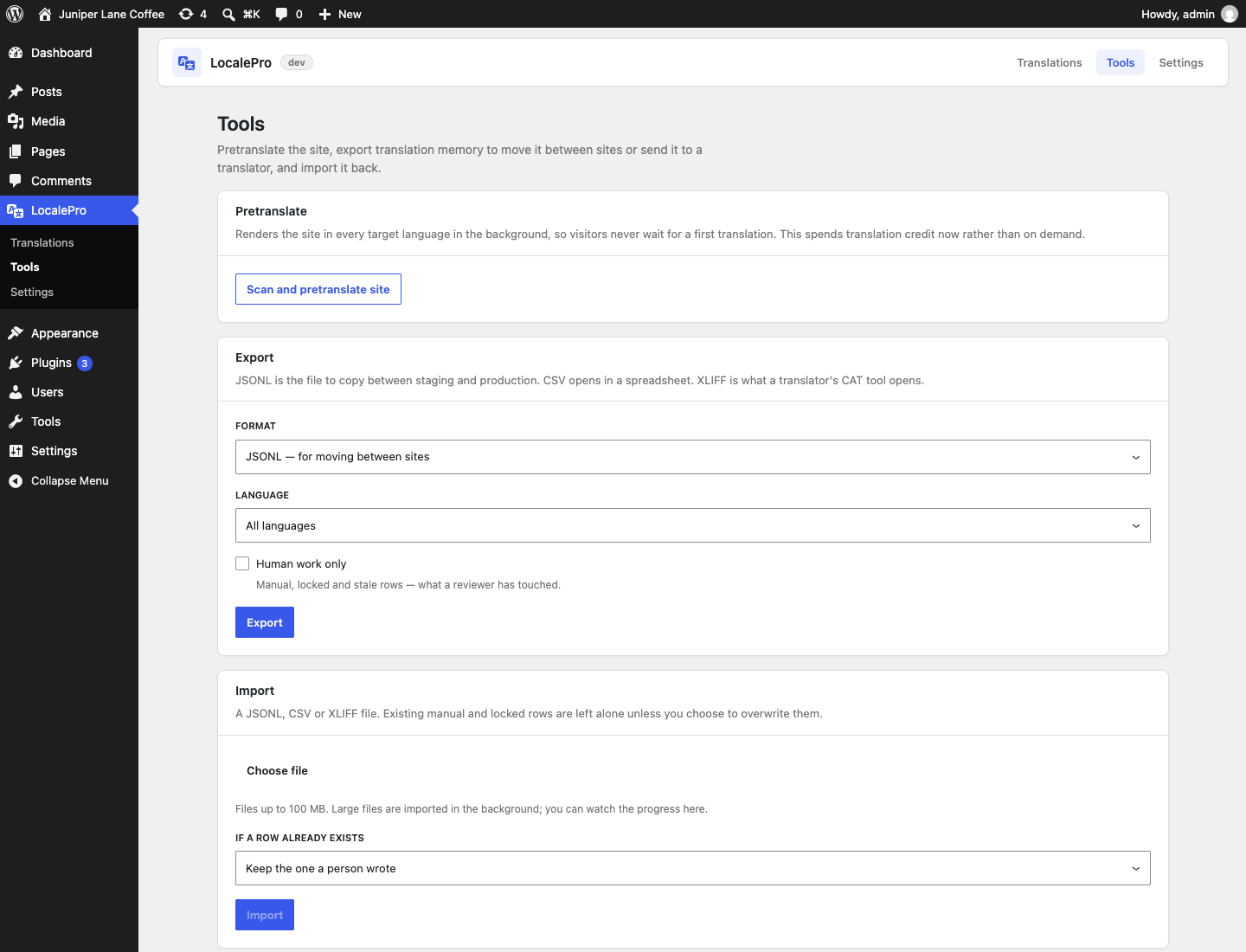
Pretranslate, export, and import from Tools.
LocalePro → Tools is for jobs you run, not settings you leave on. The screen has three cards: Pretranslate, Export, and Import. Brand voice, the glossary, and a cache flush are not here; slugs are rebuilt from the command line.
The Content tab under LocalePro → Settings links here as run Pretranslate on the Tools screen.
Pretranslate
The card’s description: it renders the site in every target language in the background, so visitors never wait for a first translation. That spends translation credit now rather than on demand.
Scan and pretranslate site queues the job. You need at least one language on under Settings → Languages; with none, the button is disabled and the card says Add a target language in Settings before scanning. A snackbar reports Pretranslation scan scheduled. or A pretranslation scan is already running.
What it walks today:
- Published posts and pages only, in batches of five, oldest id first.
- Each object is rendered the same way a visitor’s first request is, through the same background warm-up path, so the sentences that land in memory are the ones a page actually shows.
- Products, other post types, archives, and REST or AJAX endpoints are not in this scan.
There is no resume. A new scan always starts from the first post. A second click while one is running does not queue another. If a scan dies mid-way, the “already running” flag expires after an hour and the next click starts from the beginning again, not from where it stopped.
This is the site-wide pass. To translate the missing strings on one page, use Translate N missing strings on the Translations screen.
Export
Writes the translation memory to a file. Three formats:
| Format | What the screen says |
|---|---|
| JSONL — for moving between sites | The file to copy from staging to production. |
| CSV — for a spreadsheet | Opens in Excel and similar. |
| XLIFF 1.2 — for a translator | What a CAT tool opens. |
Language can be All languages or one code. Human work only limits the file to manual, locked, and stale rows — what a reviewer has touched.
Export downloads immediately. The same job on the command line is wp localepro memory export. Formats, the Weglot path, and the staging playbook are on import and export.
Import
A JSONL, CSV, or XLIFF file. Choose file, then If a row already exists:
- Keep the one a person wrote (the default): manual and locked rows stay.
- Replace it with the file.
The server’s upload limit is shown under the picker. A file over that limit is refused before it is sent; raise upload_max_filesize and post_max_size, or split the file. The plugin has no limit of its own.
Import is a two-step job. Import uploads the file first (Uploading… — nothing has been written yet). The server stages it in the database, then writes it in short runs (Importing…). The screen drives those runs and shows counts as they land. You can leave; an open job is picked up when you come back, and a background continuation keeps going if the tab is gone. Cancel import stops it. Only one import runs at a time.
When it finishes, the same five counts as on import and export: Created, Updated, Left alone (protected), Rehashed, Skipped as invalid. Notes about skipped rows are listed under the counts.
The command line equivalent is wp localepro memory import. See WP-CLI.
Translated slugs
There is no slugs control on this screen. If translated addresses 404 after a database restore or a content-only sync, rebuild the index from the command line:
wp localepro slugs reindexThat command, and when you need it, is on WP-CLI.
Related
- The Translations screen, for one page at a time and for editing rows.
- Import and export, for formats, Weglot, and staging to production.
- WP-CLI, for export, import,
memory doctor, andslugs reindex. - AI refinement, for Improve with AI in the editor and on the Translations screen, not here.